Whenever you are developing a website, there are certain things that are very essential for a good user experience. Some of the common problems a website may encounter could be slow loading of the resources, waiting for unnecessary files to download on initial render, a flash of unstyled content (FOUC), etc. To avoid such problems, we need to understand the lifecycle of how a browser renders a typical webpage.
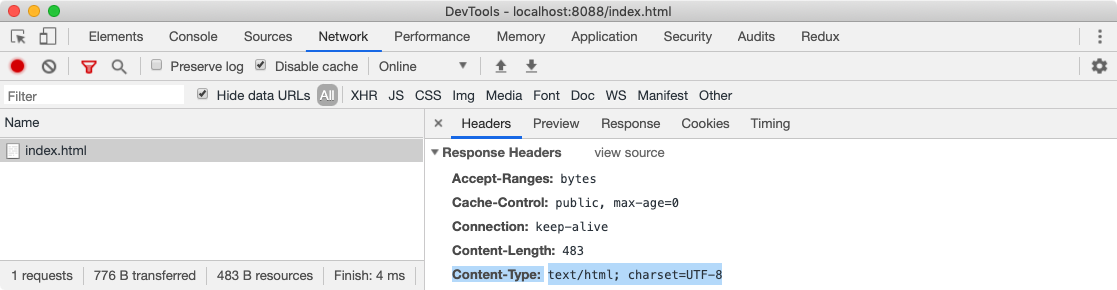
First, we need to understand what DOM is. When a browser sends a request to a server to fetch an HTML document, the server returns an HTML page in binary stream format which is basically a text file with the response header Content-Type set to the value text/html; charset=UTF-8.
Here text/html is a MIME Type which tells the browser that it is an HTML document and charset=UTF-8 tells the browser that it is encoded in UTF-8 character encoding. Using this information, the browser can convert the binary format into a readable text file. This has shown below in the screenshot.
If this header is missing, the browser would not understand how to process the file and it will render in plain text format. But if everything is OK, after this conversion, the browser can start reading the HTML document. A typical HTML document could look like this.
<!DOCTYPE html>
<html>
  <head>
    <title>Rendering Test</title>

    <!-- stylesheet -->
    <link rel="stylesheet" href="./style.css" />
  </head>
  <body>
    <div class="container">
      <h1>Hello World!</h1>
      <p>This is a sample paragraph.</p>
    </div>

    <!-- script -->
    <script src="./main.js"></script>
  </body>
</html>
In the above document, our webpage is dependent on style.css to provide styles to HTML elements and main.js to perform some JavaScript operations. With some neat CSS styles, our above webpage will look like this.
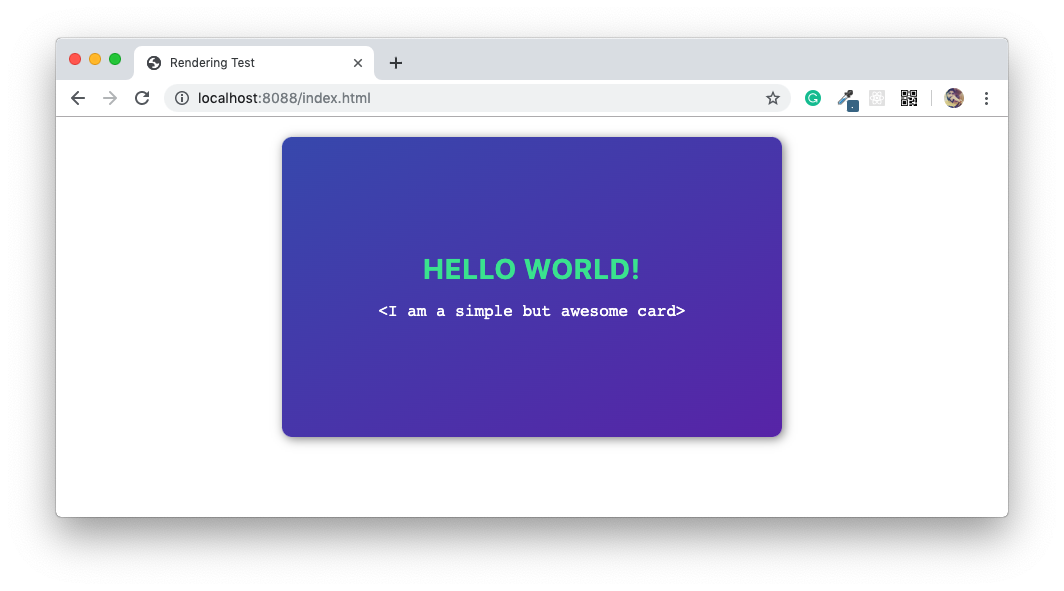
But the question still stands, how does a browser render this beautiful-looking webpage from a simple HTML file which contains nothing but text? For that, we need to understand what is DOM, CSSOM, and Render Tree?
Document Object Model (DOM)
When the browser reads HTML code, whenever it encounters an HTML element like html, body, div etc., it creates a JavaScript object called a Node. Eventually, all HTML elements will be converted to JavaScript objects.
Since every HTML element has different properties, the Node object will be created from different classes (constructor functions). For example, the Node object for the div element is created from HTMLDivElement which inherits Node class. For our earlier HTML document, we can visualize these nodes using a simple test as below.
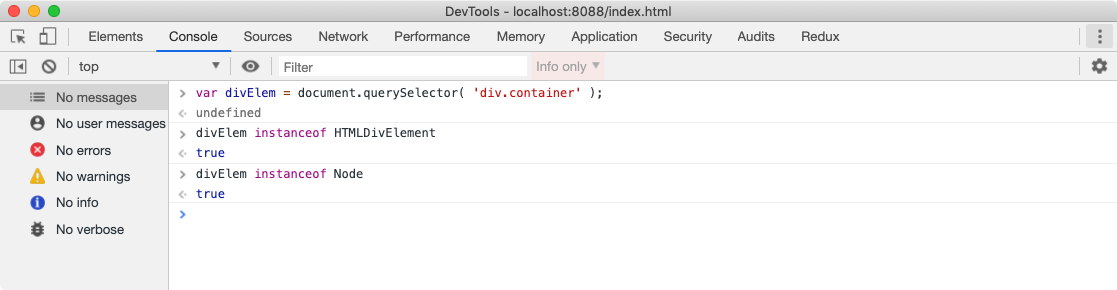
The browser comes with built-in classes like HTMLDivElement, HTMLScriptElement, Node etc.
After the browser has created Nodes from the HTML document, it has to create a tree-like structure of these node objects. Since our HTML elements in the HTML file are nested inside each other, the browser needs to replicate that but using Node objects it has previously created. This will help the browser efficiently render and manage the webpage throughout its lifecycle.
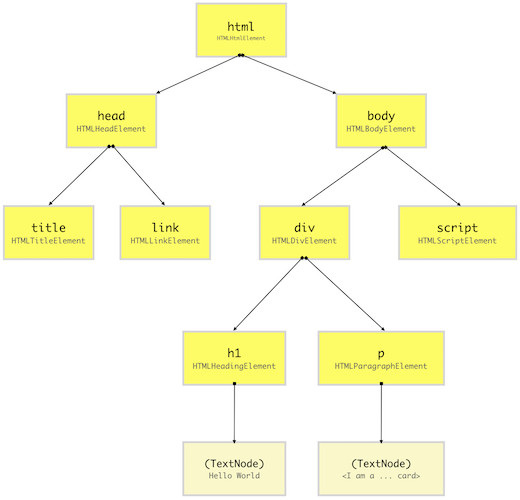
A DOM tree for our earlier HTML document looks like above. A DOM tree starts from the topmost element which is html element and branches out as per the occurrence and nesting of HTML elements in the document. Whenever an HTML element is found, it creates a DOM node (Node) object from its respective class (constructor function).
_💡 _A DOM node doesn’t always have to be an HTML element. When the browser creates a DOM tree, it also saves things like comments, attributes, text as separate nodes in the tree. But for the simplicity, we will just consider DOM nodes for HTML elements AKA DOM element. Here is the list of all DOM node types.
You can visualize the DOM tree in Google Chrome DevTools Console as shown below. This will show you the hierarchy of DOM elements (a high-level view of DOM tree) with properties of each DOM element.
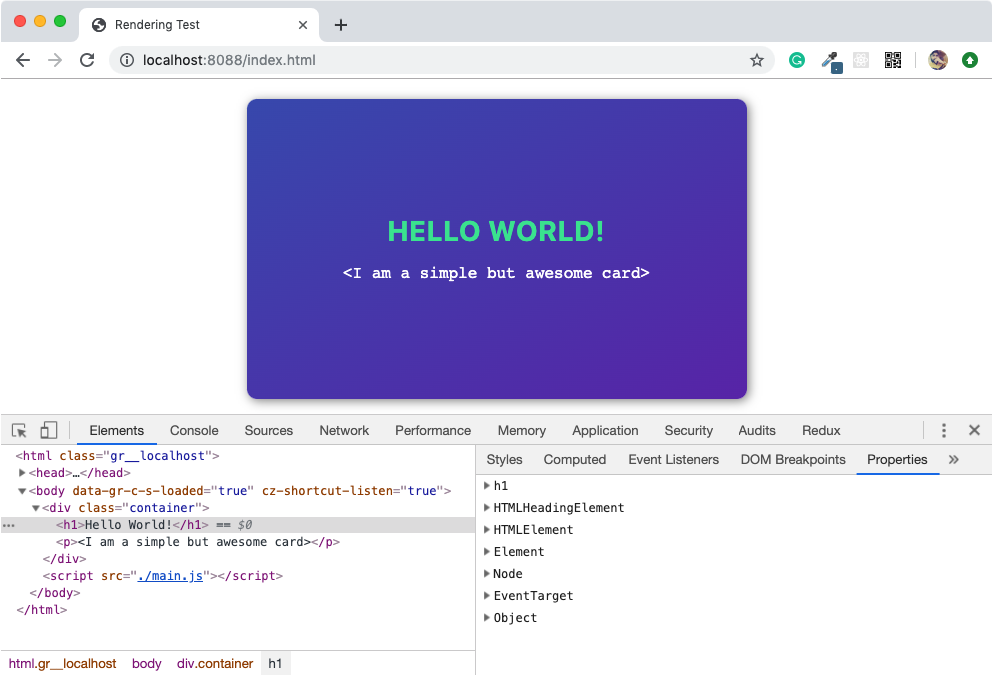
JavaScript doesn’t understand what DOM is, it is not part of the JavaScript specifications. DOM is a high-level Web API provided by the browser to efficiently render a webpage and expose it publically for the developer to dynamically manipulate DOM elements for various purposes.
_💡 _Using DOM API, developers can add or remove HTML elements, change its appearance or bind event listeners. Using DOM API, HTML elements can be created or cloned in memory and maniuplated without affecting the rendered DOM tree. This gives developers the ability to construct highly dynamic web page with rich user experience.
CSS Object Model (CSSOM)
When we design a website, our intentions are to make it as good looking as possible. And we do that by providing some styles to HTML elements. In the HTML page, we provide styles to HTML elements using CSS which stands for Cascading Style Sheets. Using CSS selectors, we can target DOM elements and set a value to style property such as color or font-size.
There are different methods of applying styles to HTML elements like using an external CSS file, with embedded CSS using <style> tag, with an inline method using the style attribute on HTML elements or using JavaScript. But in the end, the browser has to do the heavy lifting of applying CSS styles to the DOM elements.
Let’s say, for our earlier example, we are going to use the below CSS styles (this is not the CSS used for the card shown in the screenshot). For the sake of simplicity, we are not going to be bothered about how we are importing the CSS styles in the HTML page.
html {
  padding: 0;
  margin: 0;
}

body {
  font-size: 14px;
}

.container {
  width: 300px;
  height: 200px;
  color: black;
}

.container > h1 {
  color: gray;
}

.container > p {
  font-size: 12px;
  display: none;
}
After constructing the DOM, the browser reads CSS from all the sources (external, embedded, inline, user-agent, etc.) and construct a CSSOM. CSSOM stands for CSS Object Model which is a Tree Like structure just like DOM.
Each node in this tree contains CSS style information that will be applied to DOM elements that it target (specified by the selector). CSSOM, however, does not contain DOM elements which can’t be printed on the screen like <meta>, <script>, <title> etc.
As we know, most of the browser comes with its own stylesheet which is called as user agent stylesheet, the browser first computes final CSS properties for DOM element by overriding user agent styles with CSS provided by the developer properties (using specificity rules) and then construct a node.
Even if a CSS property (_such as display_) for a particular HTML element isn’t defined by either the developer or the browser, its value is set to the default value of that property as specified by the W3C CSS standard. While selecting the default value of a CSS property, some rules of inheritance are used if a property qualifies for the inheritance as mentioned in the W3C documentation.
For example, color and font-size among others inherits the value of the parent if these properties are missing for an HTML element. So you can imagine having these properties on an HTML element and all its children inheriting it. This is called cascading of styles and that’s why CSS is an acronym of Cascading Style Sheets. This is the very reason why the browser constructs a CSSOM, a tree-like structure to compute styles based on CSS cascading rules.
_💡 _You can see the computed style of an HTML element by using Chrome DevTools console in Elements panel. Select any HTML element from the left panel and click on the computed tab on the right panel.
We can visualize the CSSOM tree for our earlier example using the below diagram. For the sake of simplicity, we are going to ignore the user-agent styles and focus on CSS styles mentioned earlier.
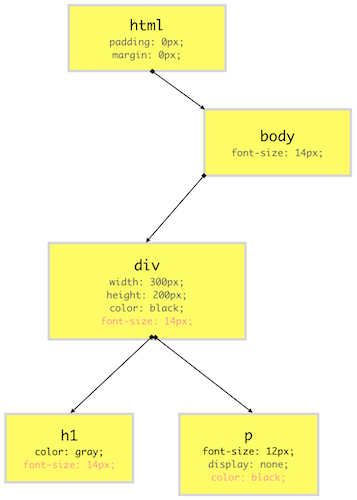
As you can see from the above diagram, our CSSOM tree does not contain elements which do not get printed on the screen like <link>, <title>, <script> etc. CSS property values in the red colors are cascaded down from the top while property values in the gray are overriding the inherited values.
Render Tree
Render-Tree is also a tree-like structure constructed by combining DOM and CSSOM trees together. The browser has to calculate the layout of each visible element and paint them on the screen, for that browser uses this Render-Tree. Hence, unless Render-Tree isn’t constructed, nothing is going to get printed on the screen which is why we need both DOM and CSSOM trees.
As Render-Tree is a low-level representation of what will eventually get printed on the screen, it won’t contain nodes that do not hold any area in the pixel matrix. For example, display:none; elements have dimensions of 0px X 0px, hence they won’t be present in Render-Tree.
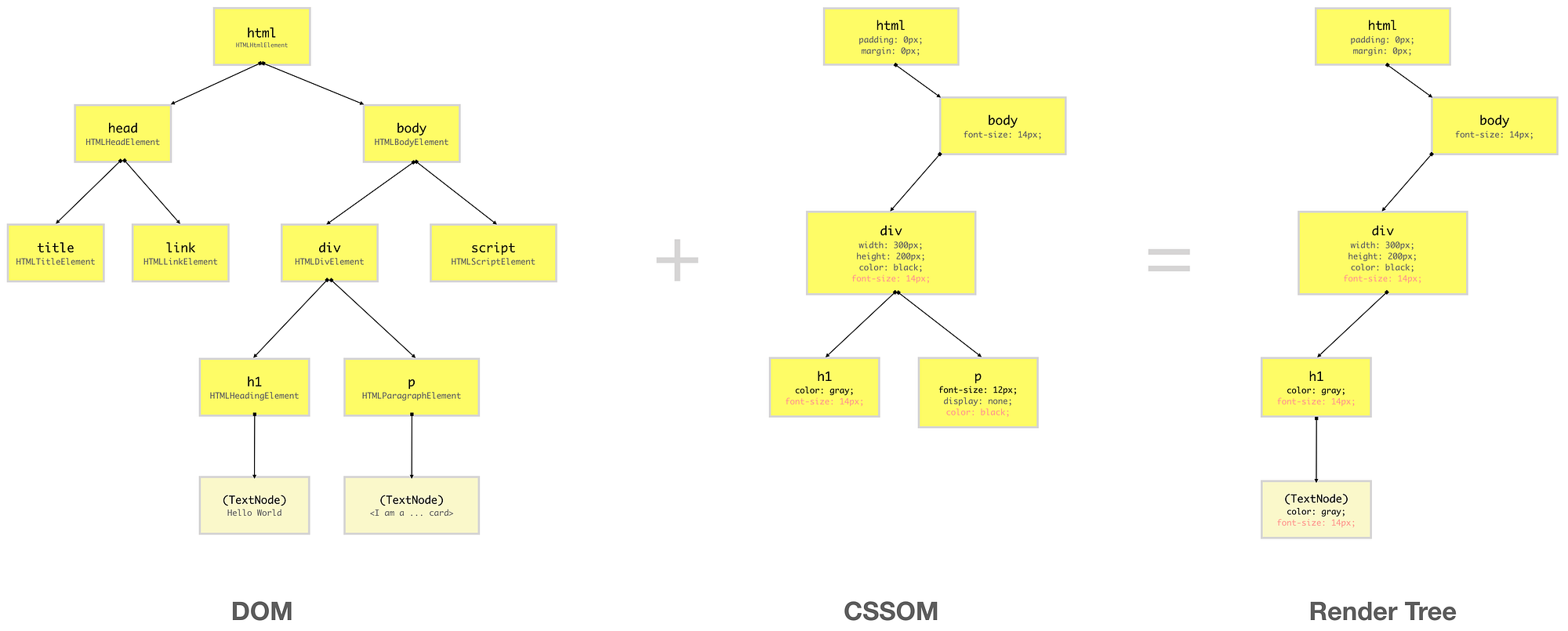
As you can see from the above diagram, Render-Tree combines DOM and CSSOM to generate a tree-like structure containing only the elements which will be printed on the screen.
Since in CSSOM, p element situated inside div has display:none; style set on it, it and its children won’t be present in Render-Tree, since it occupies no space on the screen. However, if you have elements with visibility:hidden or opacity:0, they will occupy space on the screen hence they will be present in the Render-Tree.
Unlike DOM API which gives access to the DOM elements in the DOM tree constructed by the browser, CSSOM is kept hidden from the user. But since the browser combines DOM and CSSOM to form the Render Tree, the browser exposes the CSSOM node of a DOM element by providing high-level API on the DOM element itself. This enables the developer to access or change the CSS properties of a CSSOM node.
💡 Since manipulating styles of an element using JavaScript is beyond the scope of this article, so here is the link to awesome CSS Tricks Article that covers the broad spectrum of CSSOM API. We also have new CSS Typed Object API in JavaScript which is more accurate way to maniulate styles of an element.
Rendering Sequence
Now that we have a good understanding of what DOM, CSSOM, and Render-Tree are, let’s understand how a browse renders a typical webpage using them. Having a minimal understanding of this process is crucial for any web developers as it will help us design our website for maximum user experience (UX) and performance.
When a web page is loaded, the browser first reads the HTML text and constructs DOM Tree from it. Then it processes the CSS whether that is inline, embedded, or external CSS and constructs the CSSOM Tree from it.
After these trees are constructed, then it constructs the Render-Tree from it. Once the Render-Tree is constructed, then the browser starts the printing individual elements on the screen.
Layout operation
The first browser creates the layout of each individual Render-Tree node. The layout consists of the size of each node in pixels and where (position) it will be printed on the screen. This process is called layout since the browser is calculating the layout information of each node.
This process is also called reflow or browser reflow and it can also occur when you scroll, resize the window or manipulate DOM elements. Here is a list of events that can trigger the layout/reflow of the elements.
_💡 _We should avoid the webpage going through multiple layout operations for minuscule reasons since it is a costly operation. Here is an article by Paul Lewis where he talks about how we can avoid complex and costly layout operations as well as layout thrashing.
Paint operation
Until now we have a list of geometries that need to be printed on the screen. Since elements (or a sub-tree) in the Render-Tree can overlap each other and they can have CSS properties that make them frequently change the look, position, or geometry (such as animations), the browser creates a layer for it.
Creating layers helps the browser efficiently perform painting operations throughout the lifecycle of a web page such as while scrolling or resizing the browser window. Having layers also help the browser correctly draw elements in the stacking order (along the z-axis) as they were intended by the developer.
Now that we have layers, we can combine them and draw them on the screen. But the browser does not draw all the layers in a single go. Each layer is drawn separately first.
Inside each layer, the browser fills the individual pixels for whatever visible property the element has such as border, background color, shadow, text, etc. This process is also called as rasterization. To increase performance, the browser may use different threads to perform rasterization.
The analogy of layers in Photoshop can be applied to how the browser renders a web page as well. You can visualize different layers on a web page from Chrome DevTools. Open DevTools and from more tools options, select Layers. You can also visualize layer borders from the Rendering panel.
_💡 _Rasterization is normally done in CPU which makes it slow and expensive, but we now have new techniques to do it in GPU for performance enhancement. This intel article covers painting topic in details, it’s a must read. To understand concept of layers in great details, this is a must read article.
Compositing operation
Until now, we haven’t drawn a single pixel on the screen. What we have are different layers (bitmap images) that should be drawn on the screen in a specific order. In compositing operations, these layers are sent to GPU to finally draw it on the screen.
Sending entire layers to draw is clearly inefficient because this has to happen every time there is a reflow (layout) or repaint. Hence, a layer is broken down into different tiles which then will be drawn on the screen. You can also visualize these tiles in Chrome’s DevTool Rendering panel.
From the above information, we can construct a sequence of events the browser goes through from a web page to render things on the screen from as simple as HTML and CSS text content.

This sequence of events is also called the critical rendering path.
_💡 _Mariko Kosaka has written a beautiful article on this process with cool illustrations and broader explanations of each concept. Highly recommended.
Browser engines
The job of creating DOM Tree, CSSOM Tree, and handle rendering logic is done using a piece of software called a Browser Engine (also known as Rendering Engine or **Layout Engine**) which resides inside the browser. This browser engine contains all the necessary elements and logic to render a web page from HTML code to actual pixels on the screen.
If you heard people talking about WebKit, they were talking about a browser engine. WebKit is used by Apple’s Safari browser and was the default rendering engine for the Google Chrome browser. As of now, the Chromium project uses Blink as the default rendering engine. Here is a list of different browser engine used by some of the top web browsers.
Rendering Process in browsers
We all know that JavaScript language is standardized through the ECMAScript standard, in fact since JavaScript is a registered trademark, we just call it ECMAScript now. Therefore, every JavaScript engine provider such as V8, Chakra, Spider Monkey, etc. has to obey the rules of this standard.
Having a standard gives us consistent JavaScript experience among all JavaScript runtimes such as browsers, Node, Deno, etc. This is great for the consistent and flawless development of JavaScript (and web) applications for multiple platforms.
However, that’s not the case with how a browser renders things. HTML, CSS, or JavaScript, these languages are standardized by some entity or some organization. However, how a browser manages them together to render things on the screen is not standardized. The browser engine of Google Chrome might do things differently than the browser engine of Safari.
Therefore, it’s hard to predict the rendering sequence in a particular browser and the mechanism behind it. However, the HTML5 specification has made some effort to standardize how rendering should work in theory but how browsers adhere to this standard is totally up to them.
Despite these inconsistencies, there are some common principles that are usually the same among all browsers. Let’s understand the common approach a browser takes to render things on the screen and the lifecycle events of this process. To understand this process, I have prepared a small project to test different rendering scenarios (link below).
course-one/browser-rendering-test
Parsing and External Resources
Parsing is the process of reading HTML content and constructing a DOM tree from it. Hence the process is also called DOM parsing and the program that does that is called the DOM parser.
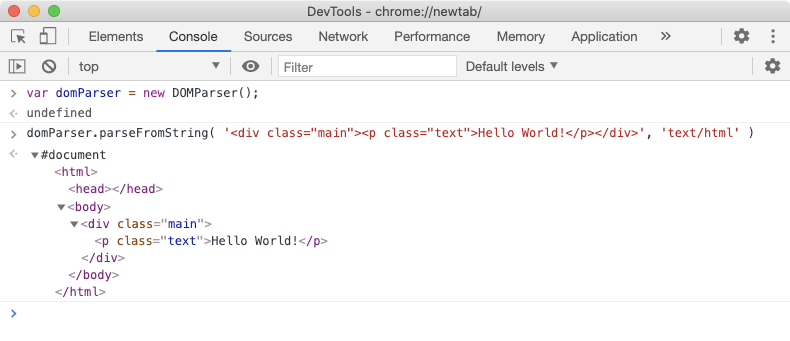
Most browsers provide the DOMParser Web API to construct a DOM tree from the HTML code. An instance of DOMParser class represents a DOM parser and using the parseFromString prototype method, we can parse raw HTML text (code) into a DOM tree (as shown below).
When the browser request for a webpage and server responds with some HTML text (with Content-Type header set to text/html), a browser may start parsing the HTML as soon as a few characters or lines of the entire document are available. Hence the browser can build the DOM tree incrementally, one node at a time. The browser parses HTML from top to bottom and not anywhere in the middle since the HTML represents a nested tree-like structure.
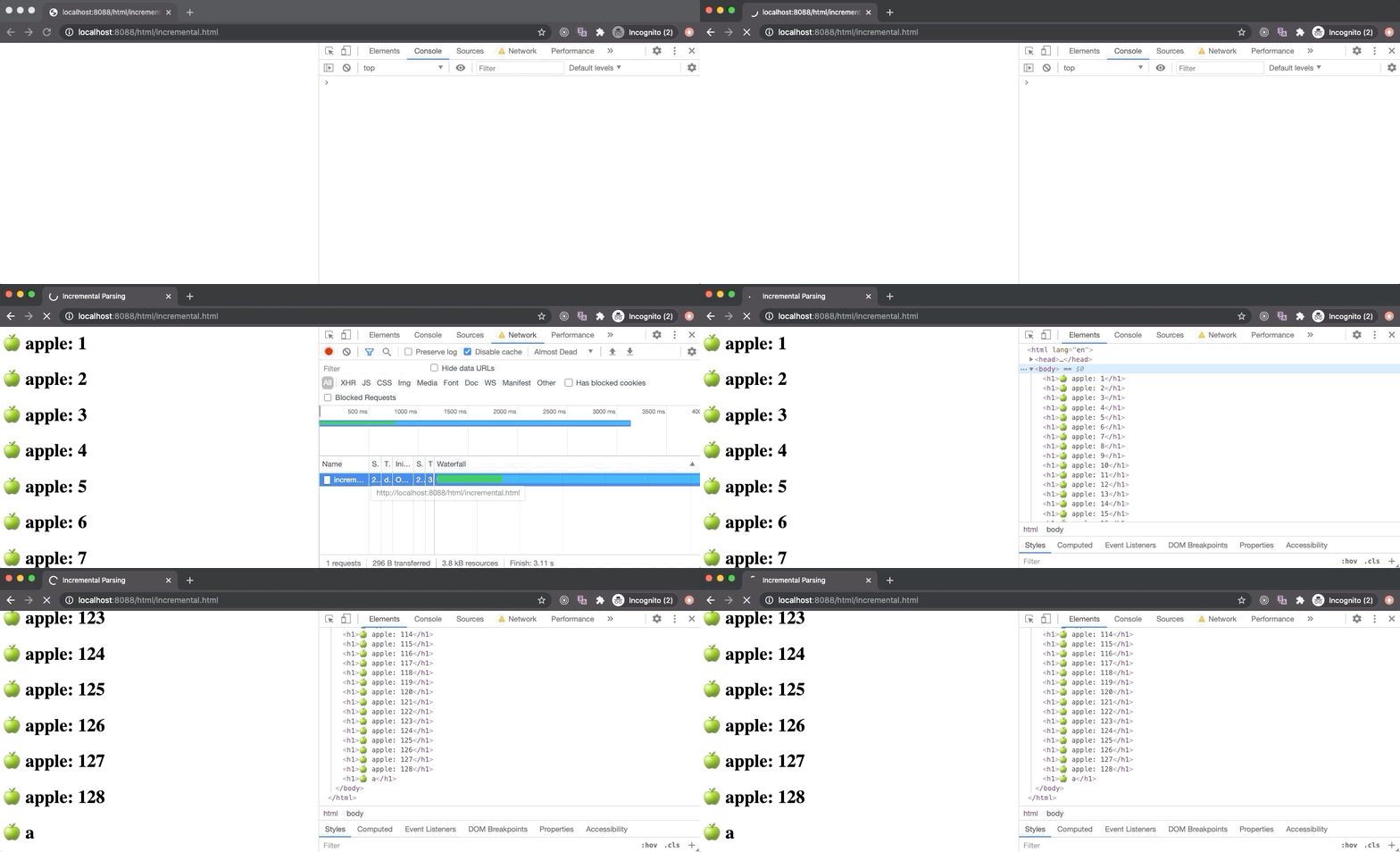
In the above example, we have accessed the incremental.html file from our Node server and set the network speed to only 10kbps (from the Network panel). Since it will take a long time for the browser to load (download) this file (as it contains 1000 h1 elements), the browser constructs a DOM tree from the first few bytes and prints them on the screen (as it downloads the remaining content of the HTML file in the background).
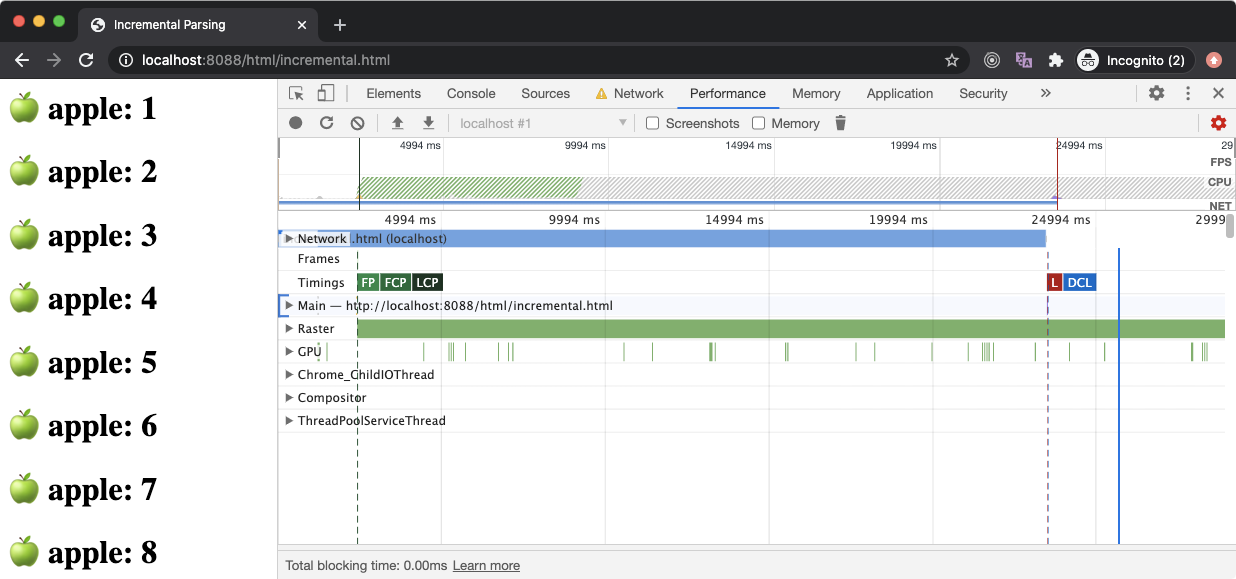
If you have a look at the Performance chart of the above request, you will be able to see some events in the Timing row. These events are commonly known as performance metrics. When these events are placed as close as possible to each other and happen as early as possible, better the user experience.
💡 Use the ⟳ icon in the Performance tab to capture a performance profile.
The FP is an acronym of First Paint, which means the time at which the browser has started printing things on the screen (could be as simple as the first pixel of the background color of the body).
The FCP is an acronym of First Contentful Paint which means the time at which the browser has rendered the first pixel of the content such as text or image. The LCP is an acronym of the Largest Contentful Paint which means the time at which the browser has rendered large pieces of text or image.
💡 _You might have heard about FMP (_first meaningful paint) which is also a metric similar to LCP but it has been dropped from Chrome in favor of LCP.
The L stands for the onload event which is emitted by the browser on the window object. Similarly, the DCL stands for the DOMContentLoaded event which is emitted on the document object but it bubbles up to window, hence you can listen to it on the window as well. These events are a little complex to understand, so we will discuss them in a bit.
Whenever the browser encounters an **external resource **such as a script file (JavaScript) via <script src="_url_"></script> element, a stylesheet file (CSS) via <link rel="stylesheet" href="_url_"/> tag, an image file via <img src="_url_" /> element or any other external resource, the browser will start the download of that file in the background (away from the main thread of the JavaScript execution).
The most important thing to remember is the DOM parsing normally happens on the main thread. So if the main JavaScript execution thread is busy, DOM parsing will not progress until the thread is free. Why that’s so important you may ask? Because script elements are parser-blocking. Every external file requests such as image, stylesheet, pdf, video, etc. do not block DOM construction (parsing) except script (.js) file requests.
Parser-Blocking Scripts
A** parser-blocking script** is a script (JavaScript) file/code that stops the parsing of the HTML. When the browser encounters a script element, if it an embedded script, then it will execute that script first and then continue parsing the HTML to construct the DOM tree. So all embedded scripts are parser-blocking, end of the discussion.
If the script element is an external script file, the browser will start the download of the external script file off the main thread but it will halt the execution of the main thread until that file is downloaded. That means no more DOM parsing until the script file is downloaded.
Once the script file is downloaded, the browser will first execute the downloaded script file on the main thread (obviously) and then continue with the DOM parsing. If the browser again finds another script element in HTML, it will perform the same operation. So why browser has to halt the DOM parsing until JavaScript is downloaded and executed?
The browser exposes DOM API to the JavaScript runtime, which means we can access and manipulate DOM elements from the JavaScript. This is how dynamic web frameworks such as React and Angular works. But if the browser wishes to run DOM parsing and script execution parallelly, then there could be race conditions between the DOM parser thread and the main thread which is why DOM parsing must happen on the main thread.
However, halting DOM parsing while the script file is being downloaded in the background is totally unnecessary in most cases. Hence HTML5 gives us the async attribute for the script tag. When DOM parser encounters an external script element with async attribute, it will not halt the parsing process while the script file is being downloaded in the background. But once the file is downloaded, the parsing will halt and the script (code) will be executed.
We also have a magical defer attribute for the script element which works similar to the async attribute but unlike the async attribute, the script doesn’t execute even when the file is fully downloaded. All defer scripts are executed once the parser has parsed all HTML which means the DOM tree is fully constructed. Unlike async scripts, all defer scripts are executed in the order they appear in the HTML document (or DOM tree).
All normal scripts (embedded or external) are parser-blocking as they halt the construction of DOM. All async scripts (AKA asynchronous scripts) do not block parser until they are downloaded. As soon as an async script is downloaded, it becomes parser-blocking. However, all defer scripts (AKA deferred scripts) are non-parser-blocking script as they do not block the parser and execute after the DOM tree is fully constructed.
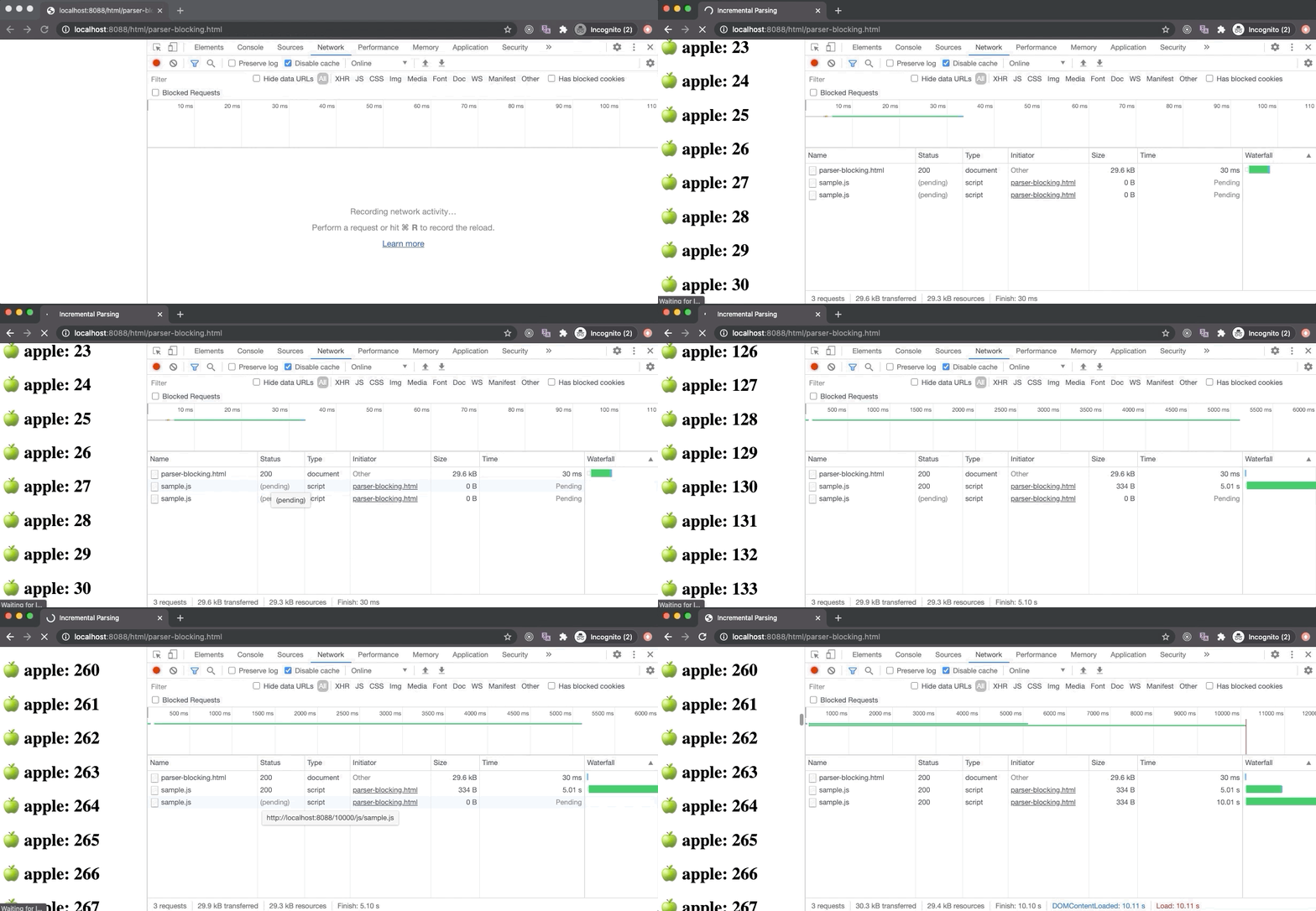
In the above example, the parser-blocking.html file contains a parser-blocking script after 30 elements which is why the browser displays 30 elements at first, stops the DOM parsing, and starts loading the script file. The second script file doesn’t block the parsing as it has the defer attribute, so it will execute once the DOM tree is fully constructed.
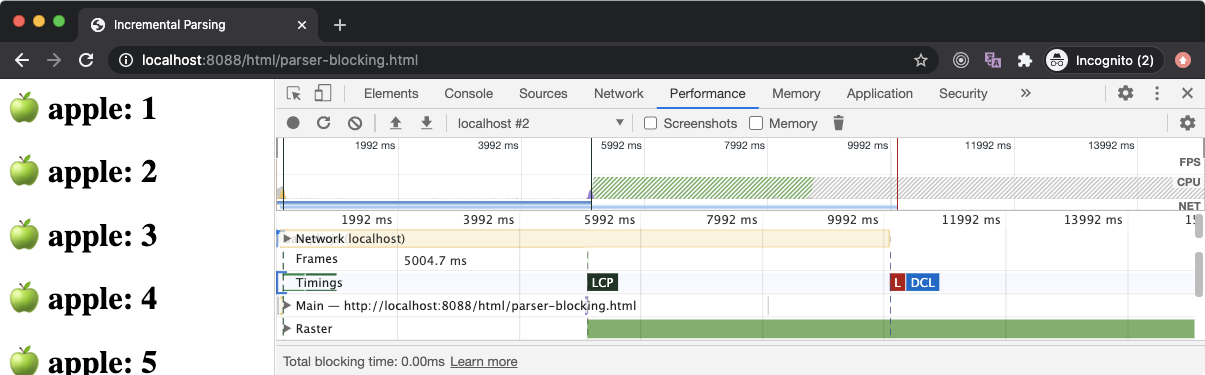
If we take a look at the Performance panel, the FP and FCP happens as soon as possible (hidden behind the Timings label) since the browser starts to build a DOM tree as soon as some HTML content is available, hence it can render some pixels on the screen.
The LCP happens after 5 seconds because the parser-blocking script has blocked the DOM parsing for 5 seconds (its download time) and only 30 text elements were rendered on the screen when the DOM parser was blocked which is not sufficient to be called as the largest contentful paint (according to Google Chrome standards). But once the script was downloaded and executed, DOM parsing resumed and large content was rendered on the screen which led to the firing of LCP event.
_💡 _Parser-blocking is also referred to as render-blocking as rendering won’t happen unless the DOM tree is constructed, but these two are quite different things as we will see in a bit.
Some browsers may incorporate a speculative parsing strategy where the HTML parsing (but not the DOM tree construction) is offloaded to a separate thread so that browser can read elements such as link(CSS), script, img, etc. and download these resources eagerly.
This is quite helpful if you have three script elements one after the other, but the browser won’t be able to start the download of the second script until the first script is downloaded as the DOM parser couldn’t read the second script element. We can fix this easily by using async tag but asynchronous scripts are not guaranteed to execute in order.
The reason it is called speculative parsing because the browser is making a speculation that a particular resource is expected to load in the future, so better load it now in the background. However, if some JavaScript manipulates DOM and removes/hides the element with an external resource, then speculation fails and these files were loaded for nothing. Tough.
_💡 _Every browser has a mind of its own, so when or if speculative parsing will happen is not guaranteed. However, you can ask the browser to load some resources ahead of time using the
<link rel="[preload](https://developer.mozilla.org/en-US/docs/Web/HTML/Preloading_content)">element.
Render-Blocking CSS
As we learned, any external resource request except a parser-blocking script file doesn’t block the DOM parsing process. Hence CSS (including embedded) doesn’t block the DOM parser…(wait for it)…directly. Yes, CSS can block DOM parsing but for that, we need to understand the rendering processes.
The browser engines inside your browser construct the DOM tree from HTML content received as a text document from the server. Similarly, it constructs the CSSOM tree from the stylesheet content such as from an external CSS file or embedded (as well as inline) CSS in the HTML.
Both DOM and CSSOM tree constructions happen on the main thread and these trees are getting constructed concurrently. Together they form the Render Tree that is used to print things on the screen which is also getting built incrementally as the DOM tree is getting constructed.
As we have learned that DOM tree generation is incremental which means as the browser reads HTML, it will add DOM elements to the DOM tree. But that’s not the case with the CSSOM tree. Unlike the DOM tree, CSSOM tree construction is not incremental and must happen in a specific manner.
When browser find <style> block, it will parse all the embedded CSS and update the CSSOM tree with new CSS (style) rules. After that, it will continue parsing the HTML in the normal manner. The same goes for inline styling.
However, things change drastically when the browser encounters an external stylesheet file. Unlike an external script file, an external stylesheet file is not parser-blocking resources, hence the browser can download it in the background silently and the DOM parsing will continue.
But unlike the HTML file (for the DOM construction), the browser won’t process the stylesheet file content one byte at a time. This is because browsers can’t build the CSSOM tree incrementally as it reads the CSS content. The reason for that is, a CSS rule at the end of the file might override a CSS rule written at the top of the file.
Hence if the browser starts constructing CSSOM incrementally as it parses the stylesheet content, it will lead to multiple renders of the Render Tree as the same CSSOM nodes are getting updated because of the style overrides rules that appear later in the stylesheet file. It would be an unpleasant user experience to see elements changing styles on the screen as CSS is getting parsed. Since CSS styles are cascading, one rule change can affect many elements.
Hence browsers do not process external CSS files incrementally and the CSSOM tree update happens at once after all the CSS rules in the stylesheet are processed. Once the CSSOM tree update is completed, then the Render Tree is updated which then is rendered on the screen.
CSS is a render-blocking resource. Once the browser makes a request to fetch an external stylesheet, the Render Tree construction is halted. Therefore the Critical Rendering Path (CRP) is also stuck and nothing is getting rendered on the screen as demonstrated below. However, the DOM tree construction is still undergoing while the stylesheet is being downloaded in the background.
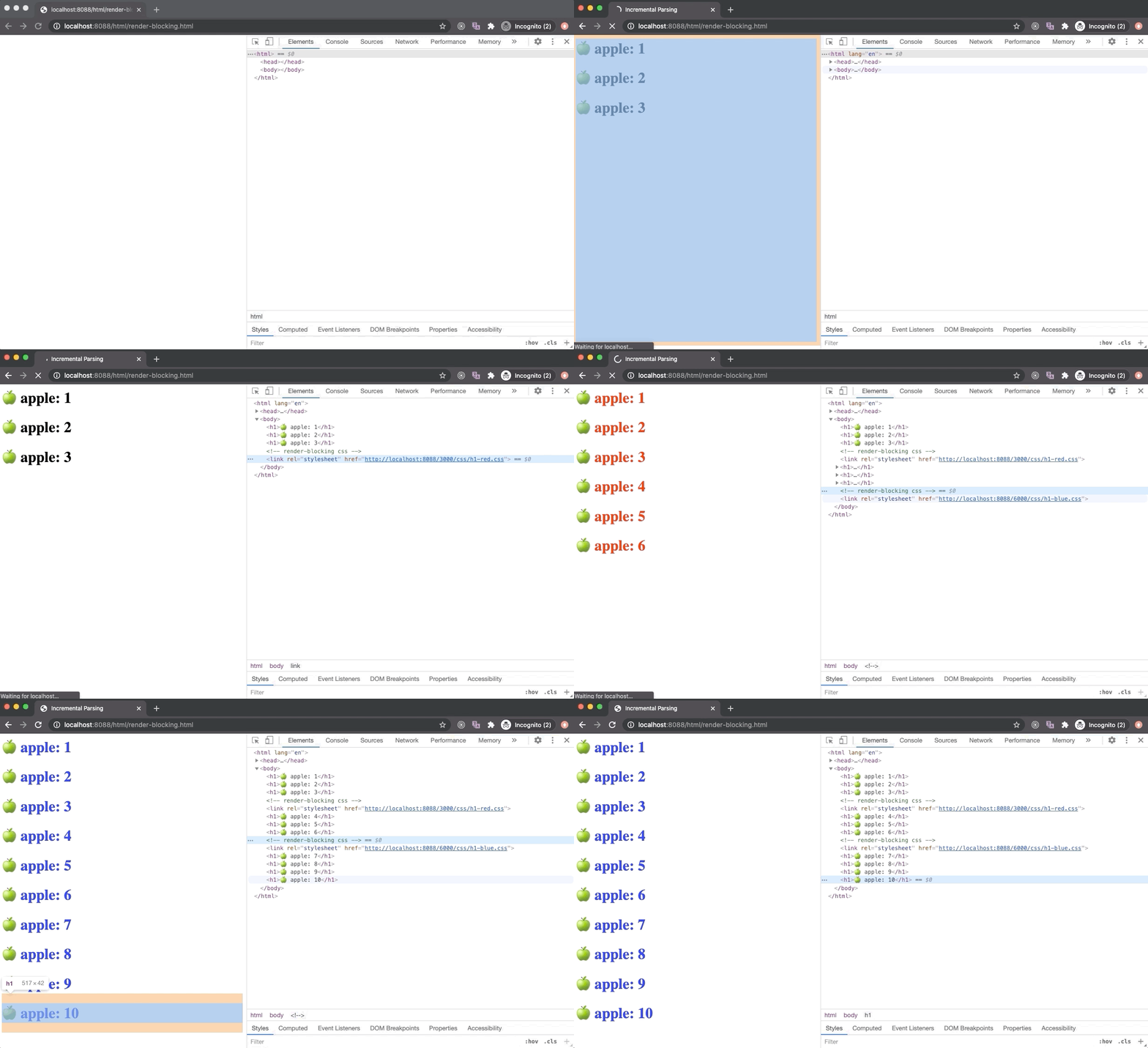
A browser could have used an older state of the CSSOM tree to generate Render Tree as HTML is getting parsed to render things on the screen incrementally. But this has a huge downside. In this case, once the stylesheet is downloaded and parsed, and CSSOM is updated, Render Tree will be updated and rendered on the screen. Now the Render Tree nodes generated with older CSSOM will be repainted with new styles and it could also lead to Flash of Unstyled Content (FOUC) which is is very bad for UX.
Hence browsers will wait until the stylesheet is loaded and parsed. Once the stylesheet is parsed and CSSOM is updated, the Render Tree is updated, and CRP is unblocked which leads to the paint of Render Tree on the screen. Due to this reason, it is recommended to load all external stylesheets as early as possible, possibly in the head section.
Let’s imagine a scenario where the browser has started parsing HTML and it encounters an external stylesheet file. It will start the download of the file in the background, block the CRP, and continue with the DOM parsing. But then it encounters a script tag. So it will start the download of the external script file and block the DOM parsing. Now the browser is sitting idle waiting for the stylesheet and script file to download completely.
But this time, the external script file has been downloaded completely while the stylesheet is still being downloaded in the background. Should the browser execute the script file? Is there any harm doing that?
As we know, CSSOM provides a high-level JavaScript API to interact with the styles of the DOM elements. For example, you can read or update the background color of a DOM element using elem.style.backgroundColor property. The style object associated the elem element exposes the CSSOM API and there are many other APIs to do the same (_read this css-tricks article_).
As a stylesheet is being downloaded background, JavaScript can still execute as the main thread is not being blocked by the loading stylesheet. If our JavaScript program accesses CSS properties of a DOM element (through CSSOM API), we will get a proper value (as per the current state of CSSOM).
But once the stylesheet is downloaded and parsed, which leads to CSSOM update, our JavaScript now has a bad CSS value of the element since the new CSSOM update could have changed the CSS properties of that DOM element. Due to this reason, it’s not safe to execute JavaScript while the stylesheet is being downloaded.
As per the HTML5 specification, the browser may download a script file but it will not execute it unless all previous stylesheets are parsed. When a stylesheet blocks the execution of a script, it is called a script-blocking stylesheet or a script-blocking CSS.

In the above example, the script-blocking.html contains a link tag (for an external stylesheet) followed by a script tag (for an external JavaScript). Here the script gets downloaded really fast without any delay but the stylesheet takes 6 seconds to download. Hence, even though the script is downloaded completely as we can see from the Network panel, it wasn’t executed by the browser immediately. Only after the stylesheet is loaded, we see the Hello World messaged logged by the script.
_💡 _Like
asyncordeferattribute makesscriptelement non-parser-blocking, an external stylesheet can also be marked as non-render-blocking using themediaattribute. Using themediaattribute value, the browser can make a smart decision when to load the stylesheet.
Document’s DOMContentLoaded Event
The DOMContentLoaded (DCL) event marks a point in time when the browser has constructed a complete DOM tree from all the available HTML. But there are a lot of factors involved that can change when the DCL event is fired.
document.addEventListener("DOMContentLoaded", function (e) {
  console.log("DOM is fully parsed!");
});
If our HTML doesn’t contain any scripts, DOM parsing won’t get blocked and DCL will fire as quickly as the browser can parse the entire HTML. If we have parser-blocking scripts, then DCL has to wait until all parser-blocking scripts are downloaded and executed.
Things get a little complicated when stylesheets are thrown into the picture. Even though you have no external scripts, DCL will wait until all stylesheets are loaded. Since DCL marks a point in time when the entire DOM tree is ready, but DOM won’t be safe to access (for the style information) unless CSSOM is also fully constructed. Hence most browsers wait until all external stylesheets are loaded and parsed.
Script-blocking stylesheet will obviously delay the DCL. In this case, since the script is waiting for the stylesheet to load, the DOM tree is not getting constructed.
DCL is one of the website performance metrics. We should optimize the DCL to be as small as possible (the time at which it occurs). One of the best practices is to use defer and async tag for script element whenever possible so that browser can perform other things while scripts are being downloaded in the background. Second, we should optimize the script-blocking and render-blocking stylesheets.
Window’s load event
As we know JavaScript can block DOM tree generation but that’s not the case with external stylesheets and files such as images, videos, etc.
The DOMContentLoaded event marks a point in time when the DOM tree is fully constructed and it is safe to access, the window.onload event marks a point in time when external stylesheets and files are downloaded and our web application (complete) has finished downloading.
window.addEventListener("load", function (e) {
  console.log("Page is fully loaded!");
});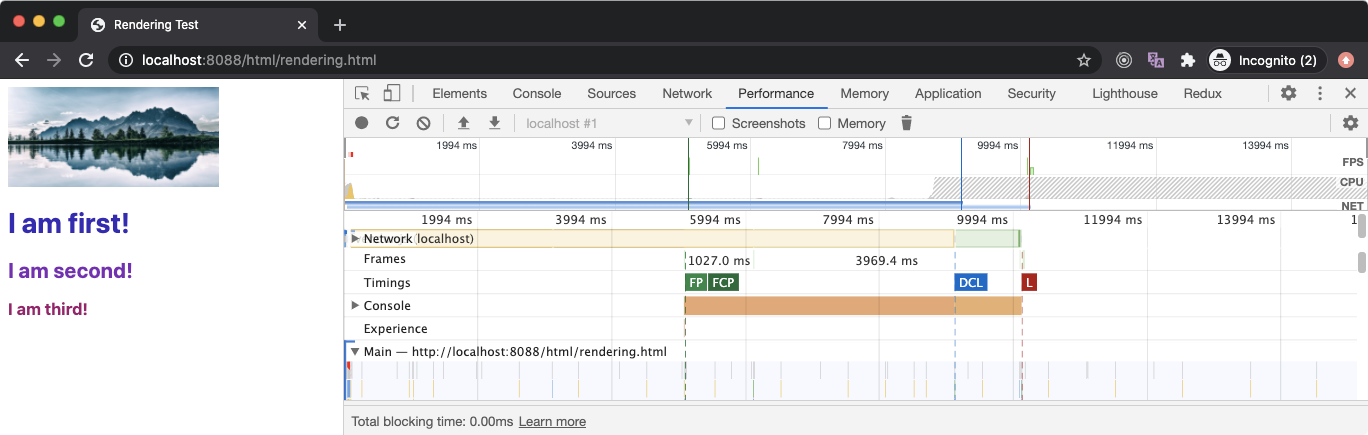
In the above example, the rendering.html file has an external stylesheet in the head that takes around 5 seconds to download. Since it’s in the head section, the FP and FCP occurs after 5 seconds since the stylesheet will block the rendering of any content below it (as it blocks CRP).
After that, we have an img element that loads an image that takes around 10 seconds to download. So the browser will keep downloading this file in the background and move on with the DOM parsing and rendering (as an external image resource is neither parser-blocking nor render-blocking).
Next, we have three external JavaScript files and they take 3s, 6s, and 9s to download respectively and most importantly, they are not async. This means the total load time should be close to 18 seconds as the subsequent script won’t start downloading before the previous one is executed. However, looking at the DCL event, our browser seemed to have used the speculative strategy to eagerly download the script files so the total time to load is close to 9 seconds.
Since the last file to download that can affect the DCL is the last script file with the load time of 9 seconds (since stylesheet has already been downloaded in 5 seconds), the DCL event occurs around 9.1 seconds.
We also had another external resource which was the image file and it kept loading in the background. Once it was fully downloaded (which takes 10 seconds), the window’s load event was fired after 10.2 seconds which marks that the webpage (application) is fully loaded.